
If you have ever recorded a screen tutorial only to spend the next two hours zooming, cutting out “ums,” cleaning up audio, and adding captions, you already know the real work in screencasting isn’t the recording — it’s the editing. FocuSee, developed by iMobie, is built to erase that second half of the job entirely.
FocuSee is an AI-powered screen recorder for Windows and macOS that analyzes your recording the moment you hit stop and applies professional effects — automatic zoom, cursor animations, audio cleanup, captions, and more. iMobie positions it as a smarter, faster alternative to tools like Screen Studio, Loom, OBS, Camtasia, and ScreenFlow, and reports a 4.8/5 rating from around 3,200 customer reviews
In this in-depth post, we’ll break down every major feature, walk through real-world use cases, and cover pricing so you can decide whether FocuSee belongs in your workflow.
What Is FocuSee?
FocuSee is an auto-editing screen recorder. Where traditional software captures raw footage and leaves the polishing to you, FocuSee treats editing as an automated post-processing step. Its core promise is captured in its slogan: “Stunning Videos in Minutes — Not Hours.
The workflow is designed around three simple stages:
- Record — Capture your screen, webcam, or both. You can record iPhone and Android screens via USB, and capture microphone and system audio as independent tracks.
- Auto-Polish — FocuSee analyzes your on-screen actions and automatically applies zoom on clicks, smooth cursor motion, dynamic camera layouts, captions, spotlights, background removal, audio enhancement, and filler-word removal.
- Export — Resize for platform presets (TikTok, YouTube, Instagram, Facebook, Twitter), export up to 4K at 60fps or as a GIF, or share via a password-protected link.
The magic is that most of step two happens automatically or in a single click. Let’s dig into exactly what those features do.
FocusSee Features
AI Screen Recorder (The Core Engine)
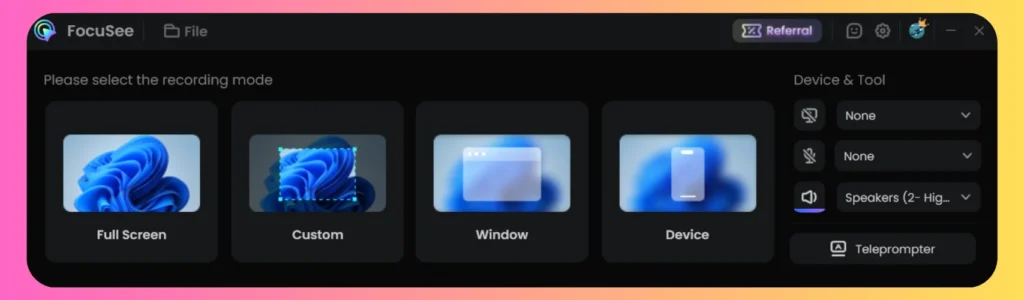
At its heart, FocuSee is a screen recorder that automates post-production. Its tagline here is “Cut Hours Down to Seconds.” You choose your recording mode — full screen, a custom area, or a specific window.
The moment you stop, FocuSee’s AI goes to work: it applies zoom effects on key actions, smooths and animates the cursor, removes silent pauses, cleans up filler words, and enhances audio. Everything remains fully editable afterward, so you can fine-tune zoom points and cursor effects. Notably, there is a free version of the AI screen recorder with no upfront cost, letting you try the core experience before paying.
Auto Zoom and Cursor Animation
This is FocuSee’s flagship feature and the one that best captures its philosophy of “ending the keyframe nightmare.”
Auto Zoom Detection— The AI automatically identifies where you click and generates zoom animations after recording, so you never manually set keyframes. You can adjust the zoom position and timing, or turn zoom off for specific sections.
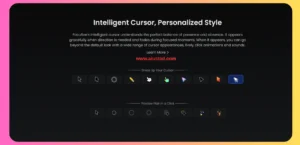
Complete Custom Cursor — Choose from up to 40 cursor styles and 8 click effects, and adjust size, color, click highlighting, and sound feedback. High-resolution rendering keeps the cursor crisp even at maximum zoom.
Smart Cursor Behavior — Advanced smoothing creates natural, fluid movement, and the cursor auto-hides during idle moments to reduce visual clutter.
This feature alone eliminates hours of manual editing and is ideal for software tutorials, product demos, and UX walkthroughs where small details matter.
3D Motion
FocuSee can convert flat recordings into cinematic experiences by simulating a natural 3D camera effect — adding depth and smoother pacing through rotation, perspective shifts, and tilting.
Automatic (Smart) Mode — One click. The AI detects key actions and important areas, then applies motion paths with no manual keyframing.
Manual (Custom) Mode — When you want full control, adjust camera position, angle, and focus area, aided by built-in presets.
The transitions are carefully aligned with your content flow, keeping even long, complex recordings visually structured. It’s especially effective for tutorials, product demos, and software walkthroughs that benefit from guided attention.
AI Avatar Generator
For creators who want a presence on camera without actually appearing — whether due to privacy concerns, camera anxiety, or brand consistency — FocuSee can generate a digital presenter.
- 100+ professional avatars ranging from formal to casual styles.
- Lifelike performance with natural expressions, accurate lip-syncing, and engaging eye contact. iMobie claims this drives *”67% higher engagement rates compared to voiceover-only videos.”
- Consistent digital spokesperson for a standardized brand voice with 24/7 availability.
It works by syncing your own recorded voice with a chosen avatar (you must supply the audio). Output supports 16:9, 1:1, and 9:16 aspect ratios and exports as MP4 or GIF. Note that individual facial features aren’t customizable yet, and the feature runs on AI credits (bundled with Advanced plans).

AI Webcam Background Removal
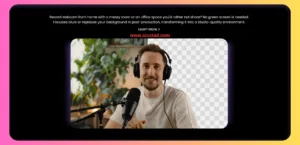
FocuSee delivers professional studio quality without a green screen or expensive equipment. In the Camera tab, the AI separates you from your surroundings while preserving portrait detail. You get four options:
– Transparent Background — One-click removal to composite yourself into any scene.
– Background Blur — Blurs cluttered backgrounds and protects your privacy.
– Virtual Scene Switching — Replace your background with virtual environments, from offices to minimalist homes.
– Solid Color — A clean, simple look.
Camera Layout
FocuSee gives you flexible control over how your webcam appears alongside your screen, with four layout types:
– Full-screen webcam — For introductions, talking-head sections, and presentations.
– Picture-in-picture (PiP) — A small webcam over your screen, ideal for tutorials and demos.
– Side-by-side — Webcam and screen adjacent, great for training, lessons, and comparisons.
– Custom layout — Freely adjust webcam size and position to avoid covering UI elements.
Crucially, you can use static layouts (consistent throughout) or dynamic layouts, switching modes mid-video during editing with smooth transition animations — no segmented recording required. You can adjust camera size, corner radius, and border colors.
AI Subtitle Generator
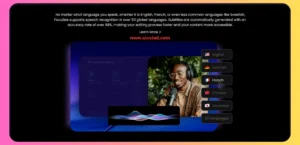
FocuSee automatically transcribes your audio using AI speech recognition and generates perfectly timed subtitles.
- Up to 99% accuracy, requiring little to no manual correction.
- 55+ languages, including English, Spanish, French, German, Japanese, and Korean.
- Adjustable subtitle size, position, and spacing.
Subtitle creation typically takes only a few minutes. Real-world accuracy depends on audio quality — one cited user reported around 95% accuracy despite poor input audio.
AI Audio Enhancer
FocuSee promises studio-quality sound in one click, claiming to save up to 50% of editing time. It combines four capabilities:
Intelligent Noise Removal — Strips background chatter, environmental sounds, and device hiss, hum, and static.
Voice Enhancement — Boosts speech frequencies and sharpens tone so a basic microphone sounds like a seasoned presenter.
Smart Volume Balancing — Compensates for head movement or changing distance from the mic.
Vocal Detail Purification — Removes breaths, lip sounds, and mouth clicks.
No audio engineering background is required. One reviewer noted the noise reduction “works amazingly — even my cheap mic sounded better.”
AI Filler Words & Silence Remover (Smart Cut)
This AI auto-cut tool detects and removes filler words (“um,” “uh”) and long silences across 55 languages, delivering broadcast-quality results without hours of trimming.
- AI Filler Word Detection removes fillers and silences with surgical precision in one click.
- Visual Text-Based Editing converts your audio to editable text, highlights fillers and silences, and lets you click to keep or remove them through an intuitive text editor.
- Video-Audio Sync automatically aligns footage with audio edits, ensuring no jarring jumps or mismatched timing.
Like the avatar generator, Smart Cut consumes AI credits included with Advanced plans.
Screen Annotation
FocuSee lets you add visual elements *after* recording — a deliberate design choice, since annotating live can interrupt your flow and limit precision. Post-recording annotation gives you more control and accuracy. Capabilities include:
- Text, Arrows & Shapes to make each step easy to understand.
- Magnifier & Highlights to spotlight key actions and critical areas.
- Information Control (Blur) to hide private details before publishing.
- Timeline Control to set exactly when annotations appear and how long they stay.
Video Watermark
FocuSee includes a built-in watermarking tool — no plugins needed — to protect your content and promote your brand. Import a custom logo (PNG, JPG, JPEG, or SVG), then adjust its placement (any corner or center), size, and transparency. For transparent backgrounds, PNG or SVG works best.
FocuSee Use Cases
FocuSee’s feature set maps neatly onto a wide range of video projects. Here’s how it serves specific needs.
Product Demo Videos
FocuSee turns raw screen recordings into polished product demos “in minutes — no editing skills required.” It’s built for product, sales, and marketing teams who need to capture workflows and showcase features. The AI automatically removes silence, filler words, and background noise while syncing audio and visuals, enabling 50% faster video creation, according to iMobie. The full workflow — record, enhance with AI, customize with branding, and export in 4K — supports Windows, Mac, iPhone, and Android capture from one desktop app. Recommended length: 2–5 minutes for standard walkthroughs.
Tutorial Videos
Pitched as turning “a 10-minute recording into a polished tutorial in just 3 minutes,” this use case targets educators, trainers, and software walkthrough creators. FocuSee acts like a built-in teaching assistant: intelligent cursor tracking with spotlight effects, automatic hotkey visualization, auto-zoom on clicks, a built-in teleprompter, AI voice enhancement, and subtitles in up to 55 languages. You can even teach without appearing on camera thanks to AI avatars and webcam background removal.
Marketing Videos
For marketers and brands, FocuSee promises professional results while cutting production time to around 10 minutes and reducing costs by up to 90%. It emphasizes Smart Focus (mouse tracking, spotlights, smooth zooms), strong branding tools (custom watermarks, preset templates, AI avatars), and bulk editing — apply presets across clips, auto-remove silences, and generate multilingual subtitles. Multi-size presets (16:9, 9:16, 1:1) let you “create once, publish anywhere.” Recommended lengths run from 6-second hooks to 2-minute product highlights.
Promo Videos
A promo video needs to grab attention fast and drive action. FocuSee lets businesses and creators with no experience produce promos in minutes using recording modes (Camera / Screen / Screen+Camera), automatic zoom, smooth cursor movements, video backgrounds, and trim/resize tools. Export as MP4 for standard publishing or GIF for lightweight sharing. The guidance: lead with the key benefit in the first few seconds and end with a clear CTA.
Reaction Videos
FocuSee captures screen, webcam, and audio simultaneously — perfect for reaction content on YouTube, TikTok, and Shorts. Crop tools and GIF export make cross-platform publishing easy. (iMobie notes that using copyrighted material is your responsibility and offers no legal advice.)
Pitch Videos
When pitching to investors, partners, or customers, FocuSee offers an almost automated process. Record your screen (slides or product) plus optional webcam, and the AI applies auto-zoom on clicks, custom cursor styles, click and spotlight effects, and background beautification. Cursor and click effects are especially useful for slide walkthroughs. Recommended lengths: 30–60 seconds for outreach, 1–3 minutes for a standard pitch, up to 5 minutes for a deeper walkthrough.
Video Presentations
FocuSee solves the classic problem of slide recordings where viewers “don’t know where to look.” Record a full or partial screen with narration and an optional webcam, then let smart auto-zoom, spotlight highlights, and smooth, custom cursor movement keep attention aligned with your narrative. A pro tip: present PowerPoint in slideshow mode and record with FocuSee for more cursor and attention control. Ideal for lectures, training sessions, performance reports, and online meetings.
FocuSee Pricing
FocuSee offers two tiers — Standard and Advanced — with monthly, yearly, and one-time options. All prices are in USD. The key differentiator is AI credits: Standard has none, while Advanced unlocks credit-based AI features like avatars, Smart Cut, subtitles, and voice enhancement. (AI Noise Reduction and AI Background Removal are included on *all* plans.)
Standard Plan
– Yearly: $4.17/month, billed $49.99/year (down from $179.99). Covers 1 computer, with a 60-day money-back guarantee.
– Monthly: $19.99/month, 1 computer, 7-day money-back guarantee.
– Includes: unlimited recording, 4K & 60fps export, custom watermark, 5 GB cloud storage, and free upgrades during your subscription. No AI credits.
Advanced Plan
– Yearly: $6.67/month, billed $79.99/year (down from $359.99). Up to 3 computers, 60-day money-back, and 3,600 AI credits/year (300/month). Adds one-click Pro AI edits.
– Monthly: $24.99/month, up to 3 computers, 300 AI credits/month, 7-day money-back.
– One-Time Purchase: $199.99 (down from $719.99). Up to 5 computers, 60-day money-back, 1,000 AI credits (valid 1 year), and lifetime access to FocuSee 2.x.
Free Trial and Guarantees
You can explore standard features and export one high-quality video (up to 4K) for free. Some AI features require a subscription and credits. Money-back guarantees run 60 days on one-time and yearly plans, and 7 days on monthly plans (used AI credits are deducted from refunds). iMobie also offers a 30% education discount for teachers, students, and staff, as well as custom plans for teams that need more devices.
Who Should Use FocuSee?
FocuSee is best for anyone who creates screen-based video regularly but doesn’t want to become a video editor:
– Product and SaaS teams building demos, onboarding, and release videos.
– Educators and trainers producing tutorials and course content at scale.
– Marketers and creators are shipping social-ready promos and marketing clips fast.
– Founders and professionals recording pitches and presentations that look polished.
Its biggest strengths are automatic zoom and cursor control, one-click AI cleanup (audio, filler words, silences), and the ability to appear professional without a studio — through background removal, avatars, and enhanced audio.
⬇️DOWNLOAD FOCUSEE NOW⬇️
Final Verdict
FocuSee makes a compelling case for the future of screen recording: automatic editing. By folding zoom, cursor animation, audio enhancement, captions, and cleanup into a record-and-export workflow, it removes the single biggest barrier to producing professional screencasts: time. If your work involves a steady stream of demos, tutorials, or presentations, the free trial is an easy way to see how many hours it could save you.
